Watch the iPhone demonstration
Public test data only. This sample checks authenticator codes in this browser. It does not sign you in to a service or register your device. Never use this key for a real account.
1. Scan in DC Authenticator
Open this page on a computer. In the iPhone or iPad app, choose EN, tap Scan and allow camera access. Point the camera at this QR.
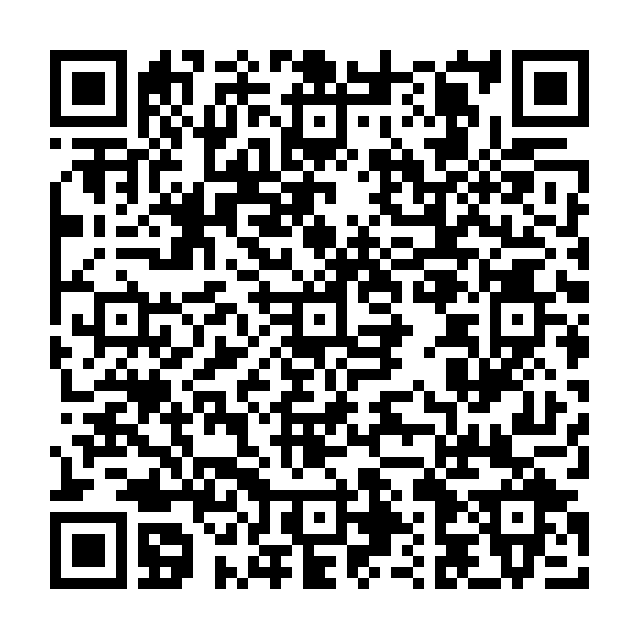
- Issuer
- DC Demo
- Account
- review@example.com
On the same phone, or unable to scan?
Use + in the app to add the following public key manually. Choose 6 digits, SHA-1 and 30 seconds if asked. If DC Demo already exists from the app's built-in sample, use that code.
GEZDGNBVGY3TQOJQGEZDGNBVGY3TQOJQ2. Check the code from the app
Enter the six digits shown for DC Demo. This comparison runs locally in your browser; no code is sent to a server.
Preparing code verification…
New code in — seconds.
Show the expected sample code
—
Compare this sample code with the code shown in your app.
3. Explore the app
- Watch the countdown and the code change every 30 seconds.
- Copy the code in the app and compare it here.
- Delete the demo code when finished. Add it again by scanning this QR.
Using automatic sign-in
To use QR sign-in and Face ID or Touch ID approval, connect your phone from the security settings of your account on a compatible Digital Centar service. Use the QR provided by that service. The sample QR on this page is for one-time codes only.
Watch on a real iPhone
A screen recording from a physical iPhone showing QR scanning, a one-time code and sign-in approval with Face ID.
Open the video in a separate tab
The recording shows a sample QR being scanned and the DC Demo code appearing in the app. It then shows a sign-in QR being scanned, color matching, Face ID authentication and the app's sign-in confirmation. The sign-in sequence uses an already connected account; the public sample QR above tests one-time codes only.